Master thesis - finished 2024
SoundSight: enlarged sheet music
Student: Bob Eeckhout
External party: Blindenzorg Licht en Liefde vzw
About
The SoundSight app is an app that makes sheet music more accessible for people with visual impairments. This application allows you to view sheet music enlarged and offers the flexibility to adjust colors to your preference.
A unique feature is the automatic scrolling or shifting of the score, which significantly improves ease of use. The scroll tempo is either the tempo prescribed by the score or automatically adjusted to the musician’s playing tempo.
The possibility of collaboration within the application is also important. Users can share control of the application with an external device, which facilitates interaction and guidance from teachers or fellow musicians, for example.
The SoundSight app was developed to be cross-platform, meaning it was not developed for any specific device. While building the app, it was initially tested for Android devices. Afterwards, the app was also adapted for and tested on iOS, the operating system of the iPhone and iPad, among others. The app can also work on a device with Microsoft Windows (for example a laptop).
User manual
The app mainly consists of three screens: the library, the main sheet music and the user settings screen. Switching between these screens can be done through the navigation panel on the left.
Library screen
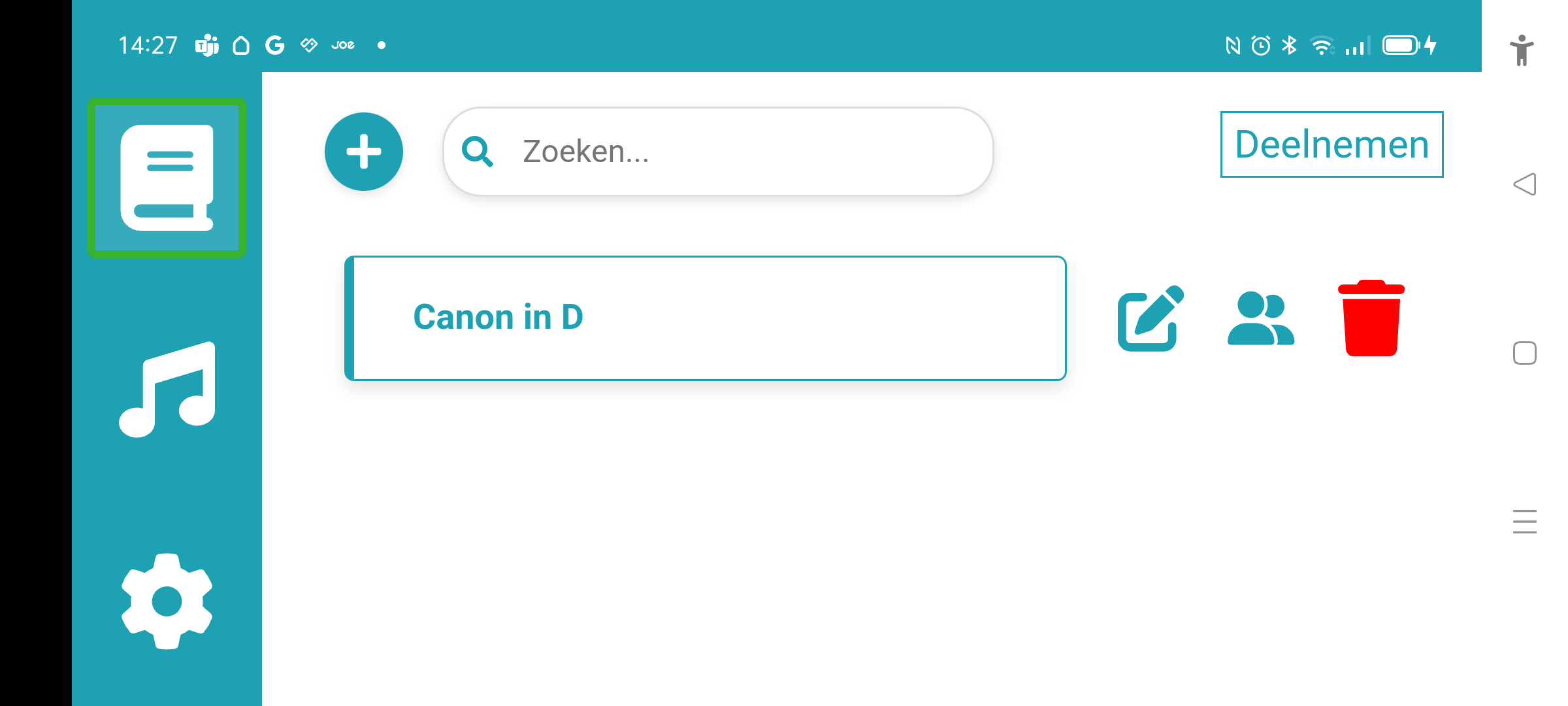
The “+”-button at the top left, allows the user to import from the file system a MusicXML file. MuseScore is an example of a website where a huge collection of MusicXML files are available.
A tile is created per imported MusicXML file, consisting of three buttons: the pencil button allows editing the entry (title, etc), the button with two persons allows starting a session based on this entry and the trash button allows deleting the entry from the library. Pressing anywhere else on the tile opens the file in the main sheet music screen.
The top right join (Dutch: deelnemen) button allows the user to join a session started by someone else.
Main sheet music screen
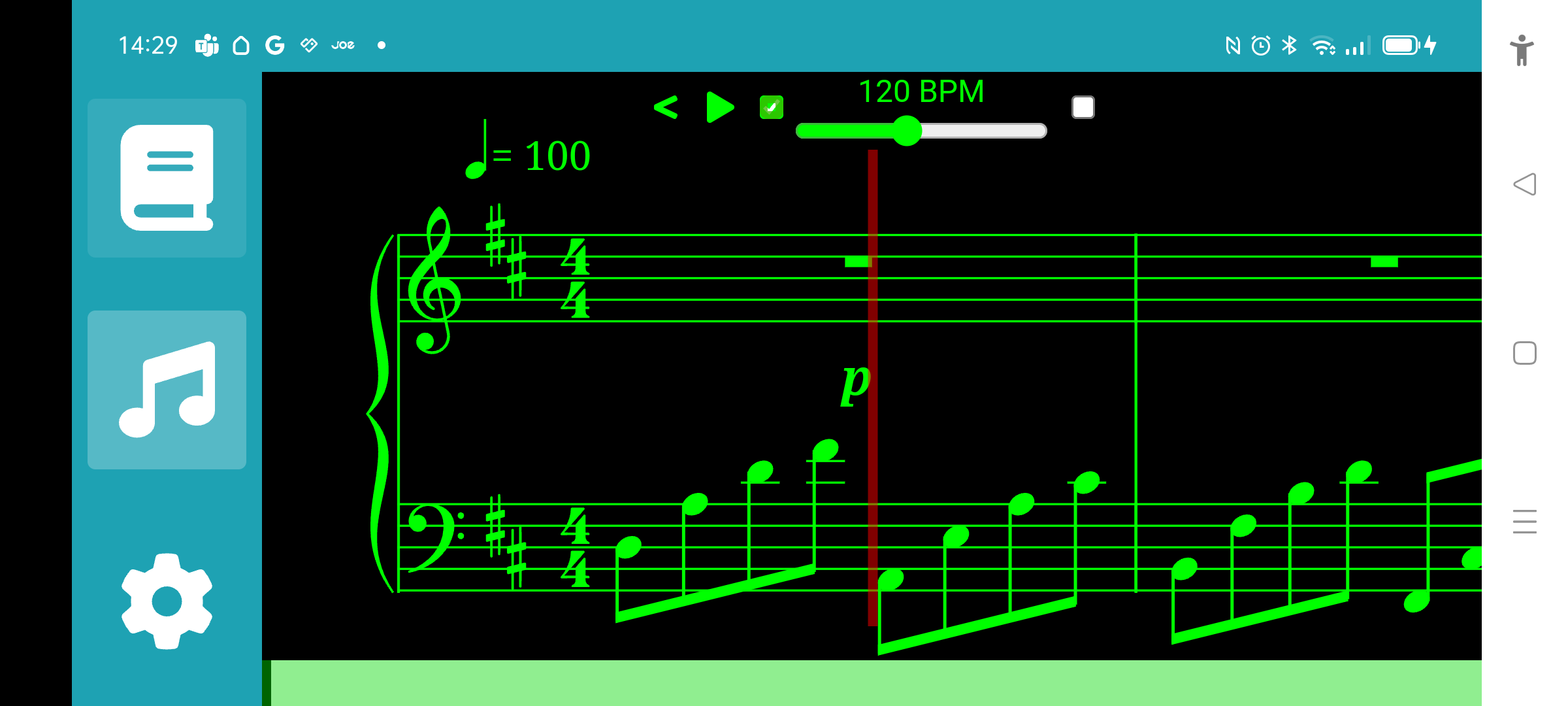
The main sheet music screen mainly displays the enlarged sheet music. At the top there is a control panel and at the bottom a progress bar.
The control panel at the top consists of two buttons and two checkboxes. The left button (“<” or “>” symbol) shows or hides the navigation panel at the left.
Next is the start/stop button (right pointing filled triangle or filled square). This button controls whether the sheet music is scrolling from right to left. The scrolling of the sheet music turns in an autocue lookalike for sheet music. The scroll position can also be controlled by swiping the sheet music left or right and pressing a position on the progress bar at the bottom.
The left checkbox next to the start/stop button controls whether the scroll tempo is based on what the MusicXML file dictates, or that a custom tempo is used. When the checkbox is checked, a slider is shown allowing the user to adjust the custom scroll tempo.
The right checkbox controls whether the app activates the microphone and locks the scrolling according to the played music.
User settings screen
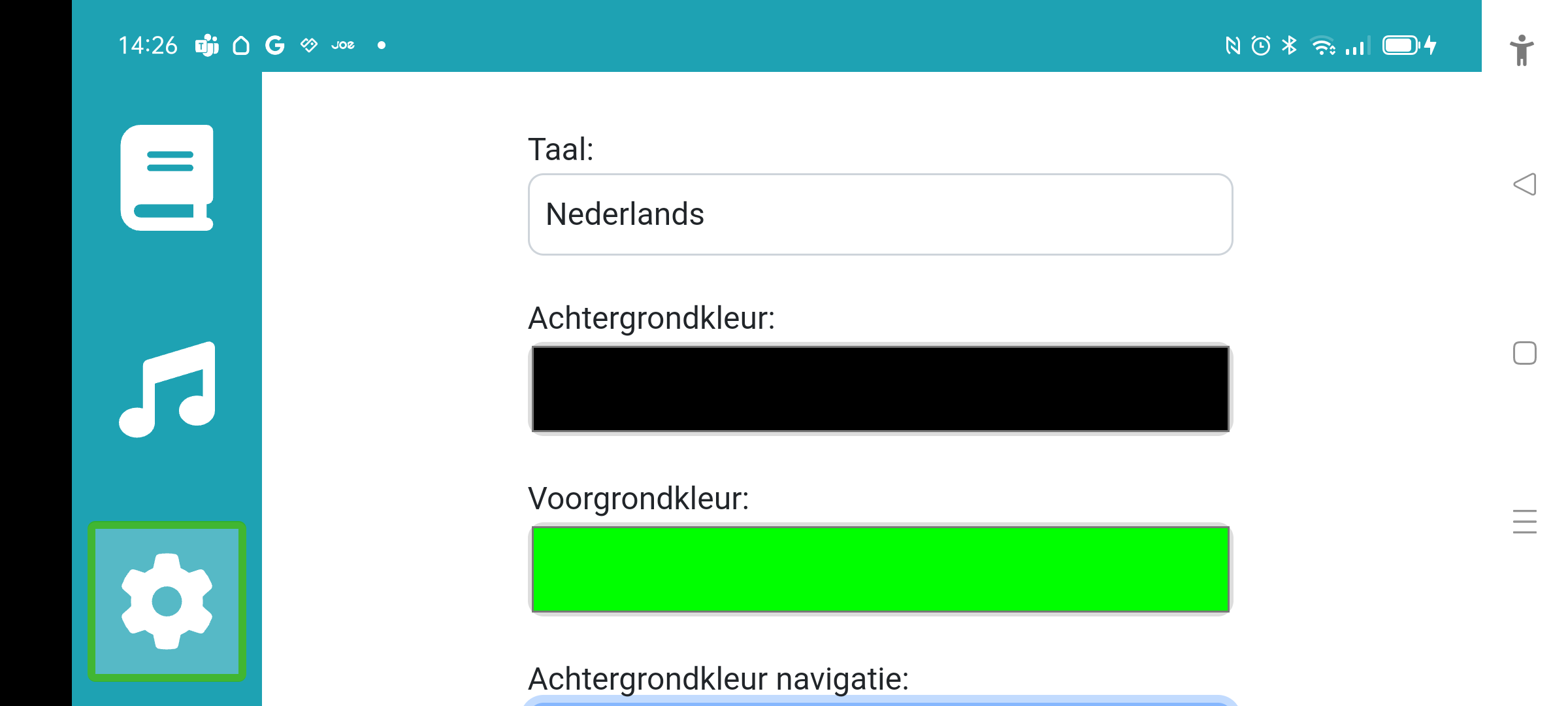
The user settings screen allows setting language, color scheme of several UI components, zoom level (if not maximal zoom is desirable) and focus line appearance. A save and reset button are provided at the bottom of the screen.
Availability
Source code is made available on GitHub under an AGPLv3 license._ Public test phase are being setup for iOS and android. Please volunteer by sending us a mail to participate in this test phase. The app will be made available later on the Google Play Store and the Apple App Store.
Windows versions can be compiled from the source code on GitHub or by sending a mail.
Privacy statement
The SoundSight app only stores user settings data and MusicXML files imported by the user. This data is needed for the functioning of the app itself.
This or no other (personal) data is collected for any other purpose than the intended functioning of the app, being displaying sheet music enlarged and with the colors adjusted to the needs of the (visually impaired) user.
There is no integration with an online service and as such no (personal) data is collected outside of the app. The only communication function in the app is to send display synchronization commands and potentially the MusicXML file to be displayed in a session with another user (e.g., teacher – student session).
The source code is open and publicly available on Github under an AGPLv3 Github for review by any interested party.